
Moving Students to Other Classroom
In this doc you'll learn how to move students into new classrooms, and also how to invite other teachers into your current classroom so they can quickly move students into their own classroom.
Add students to another classroom
Same students, new year? This guide shows you how to quickly move groups of students into a new classroom without sharing classroom URLs or sending email invites.
Note: we recommend teachers create all new classroom(s) before doing this process.
Start by going to the Manage Members page for any of your classrooms.

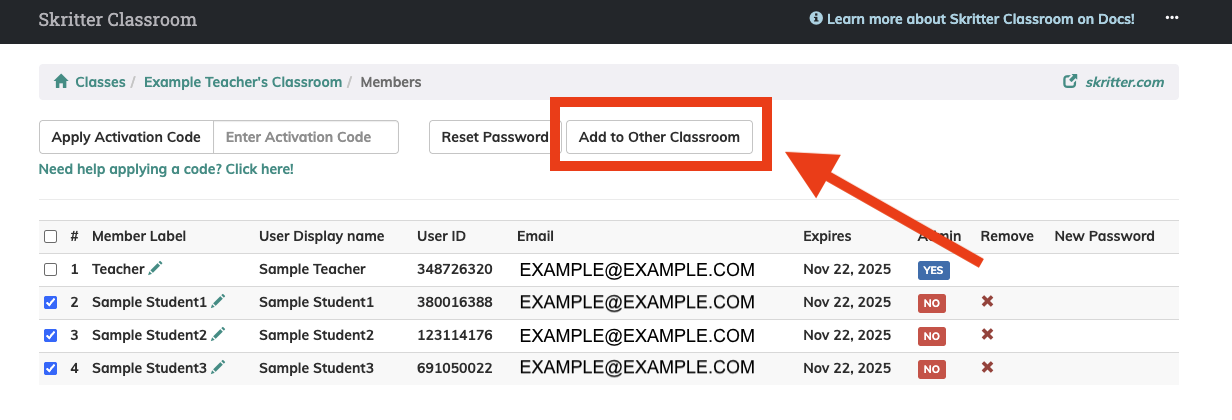
Once you're on the Manage Members screen, select the accounts you'd like to add to another classroom from the left-most column.

With the user accounts selected, press the "Add to Other Classroom" button at the top of the page.
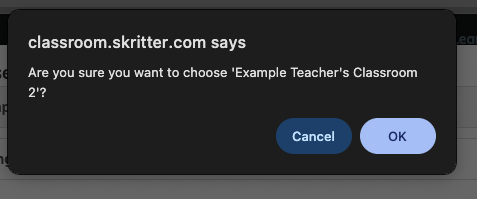
After selecting your classroom, confirm that you'd like to move students there, then press "OK."

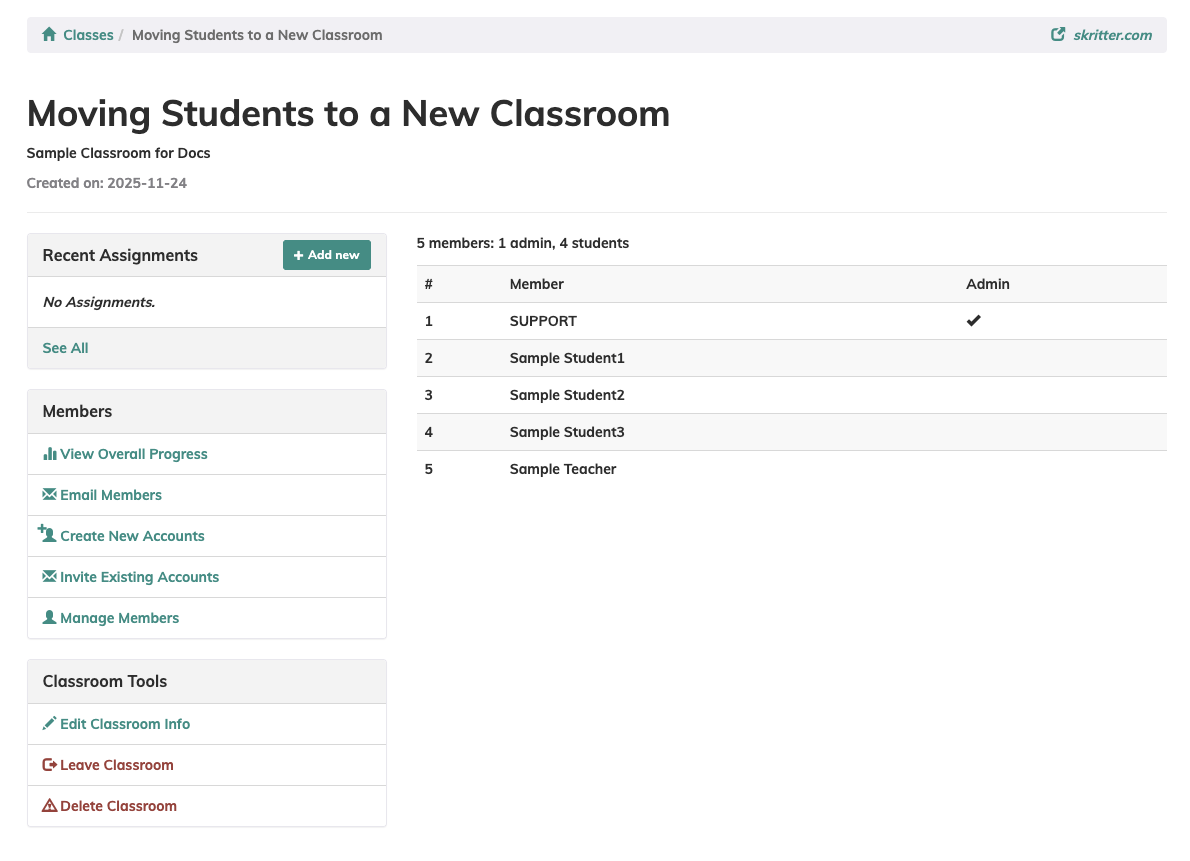
Students will now automatically join your new classroom, where you can create new assignments, add new activation codes, and more.
Allow other teachers to add students to another classroom
Are students moving to the next level of their language course? Use this guide to work with other language teachers in your program and move students quickly and easily between classrooms and levels.
To allow other teachers to add students to their classroom(s). You'll first need to invite them to join your classroom by selecting "Invite Existing Accounts" in the Members area of your classroom. Send a classroom invite via email or by sharing the URL link in the pop-up.
Note: we recommend teachers create all new classroom(s) before doing this process.
Teacher 1:
Once the teacher joins your classroom, you'll need to grant them Admin access, which will allow them to view other members and also move them to another classroom. Do this by going to the Manage Members page.
Under the Admin column, press the " No" button and change it to a "YES."

Teacher 2:
Now that you have Admin access, select one or more students from the leftmost column to move to your new classroom.

Once the students have been selected, click the " Add to Other Classroom" button and choose a classroom from your list.

After selecting your classroom, confirm that you'd like to move students there and press " OK."


Students will now automatically join your new classroom. They will still be part of the existing classroom, and you will remain an Admin of that classroom until you leave the classroom or are removed by the other teacher.